Turn on automatic forwarding in Outlook
How to enable automatic forwarding in classic Outlook
-
For classic Outlook, on the ribbon, select the Home tab, then in the More commands
 section, select Rules > Manage Rules & Alerts.
 -
If you have more than one email account set up, on the Email Rules tab, ensure that Apply changes to this folder is set to the email address you want to start from. Otherwise, go to the next step.
-
Select New Rule.
-
Under Start from a blank rule, select Apply rule on messages I receive. Select Next.
-
Under Which condition(s) do you want to check?
-
Do not select any conditions or edit the rule description in steps 1 or 2.
-
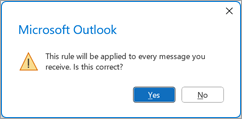
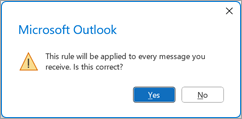
Select Next, and then select Yes to This rule will be applied to every message you receive.
-
-
Under What do you want to do with the message?
-
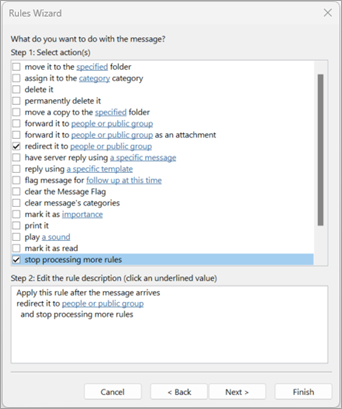
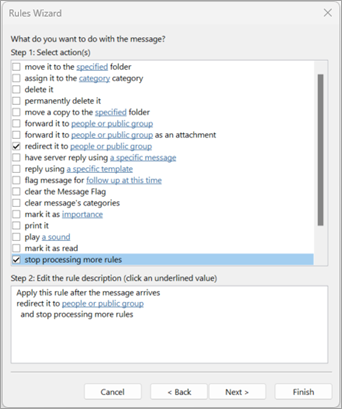
Under Step 1: Select action(s), select redirect it to people or public group and stop processing more rules.
-
Under Step 2: Edit the rule description, select the people or public group link.
-
-
In the Rule Address dialog, under Address Book, select the contact list that contains the address you want to forward to.
-
In the To box at the bottom, enter the email address that you want to forward all your mail to. Select OK. You should see the email address you want all of your email forwarded to inserted into the rule under Step 2.
-
-
Select Finish, select Apply, and then select OK.